Nadia Khalil · Guide
The Sideconvo Voice, Chat & Search Agent plugin connects your WordPress site to the Sideconvo AI platform. Visitors can ask questions about your content — typed or spoken — and get answers drawn from your own pages and posts. It can also replace WordPress’s keyword search with AI-powered semantic search.
Once connected, the plugin syncs your chosen content to Sideconvo and keeps it current as you publish, edit, schedule, and delete. It also adds the Sideconvo Button block to your editor, covered in full in How to Use the Sideconvo Button Block in WordPress.
Setup takes about ten minutes. Initial indexing takes longer, depending on how much content you have.
Get the plugin on WordPress.org →
Before You Begin
Make sure you have:
- A Sideconvo account — sign up free at platform.sideconvo.ai
- Administrator access to your WordPress site
- WordPress 6.0 or higher and PHP 7.4 or higher
Step 1 — Install and Activate
- In wp-admin, go to Plugins → Add New.
- Search for Sideconvo, click Install Now, then Activate. You can also download it directly from wordpress.org/plugins/sideconvo.
- A Sideconvo item appears in your admin sidebar, marked with the Sideconvo “S”.
Step 2 — Connect Your Site
- Click Sideconvo in the admin menu.
- On the splash screen, click Connect to Sideconvo.
- Sign in to your Sideconvo account in the window that opens.
Your site is authenticated automatically — the Site ID is linked and your API key is stored server-side in WordPress options. It’s never exposed to the browser or to your visitors, and all communication with Sideconvo runs over encrypted HTTPS.
If your API key later becomes invalid, the plugin surfaces an admin notice with a reconnect link, and the Sync screen shows a disconnect banner rather than failing quietly.
Step 3 — Choose What to Index
The first time you connect, the Site Configuration Wizard walks you through selecting content.
Select Content Types
Choose the post types and taxonomies your agent should know about — Posts, Pages, WooCommerce Products, any custom post type, plus categories, tags, and custom taxonomies. Only what you select is sent to Sideconvo. Your choice saves immediately and can be changed later under Content Types.
Multilingual site? The Content Types screen includes a Languages section with per-language item counts, so you can see how much content each language contributes and include or exclude languages individually. Indexing is language-aware, so only the correct language version is indexed and visitors get answers in the language they’re browsing.
Start Indexing
Confirm your selection and the plugin begins indexing in batches, with a live status per content type:
| Status | Meaning |
|---|---|
| Queued | Waiting to be sent |
| Indexed | Successfully synced to Sideconvo |
| Failed | An error occurred — the plugin retries automatically |
Batch sizes adjust to your server’s available memory, and the plugin is rate-limit aware: if the API returns a 429, it waits out the exact Retry-After window and resumes on its own.
Important for large sites: sync is driven by a polling loop in your browser, not by a background WP-Cron job. Keep the Sync page open in a tab while a large initial index runs. If you navigate away, your progress is saved and picks up where it left off when you return — but it won’t advance while the page is closed.
Step 4 — Find Your Way Around
Everything lives in wp-admin. Two cards at the top of the sidebar give you a constant read on your setup:
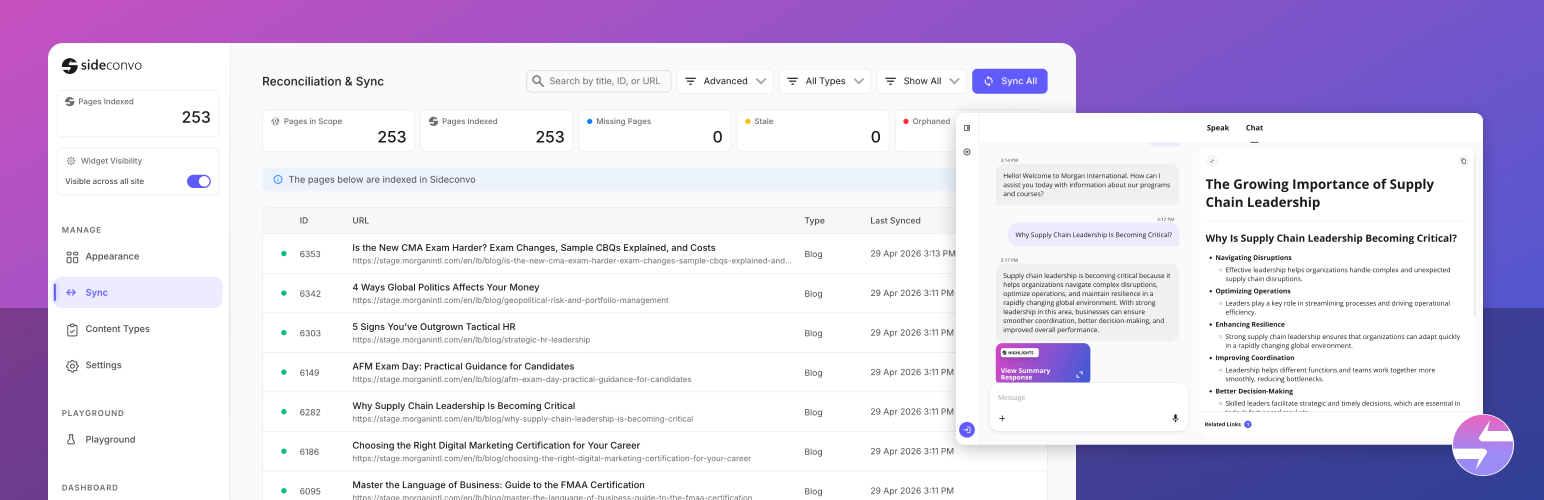
- Pages Indexed — a live count of your content in Sideconvo, with a health dot. Hover for a popover grouped into Sync Health (In Scope, Indexed, Excluded) and Needs Attention (Failed, Missing, Stale, Orphaned, Queued). Every row deep-links to a pre-filtered view of the Sync screen.
- Sideconvo Agent — two quick toggles: show or hide the chat widget site-wide, and turn semantic search on or off.
Below the cards:
| Group | What’s in it |
|---|---|
| Manage | Appearance (widget look, logo, language), Sync, Content Types, Settings |
| Playground | Agent (test in chat or voice), Search Playground (preview search results) |
| Dashboard | Overview, PDFs & Knowledge, Presentations, Conversations, Site Preferences |
Some sections depend on your plan. Locked features show a padlock with a one-click upgrade path, and your subscription is managed inside wp-admin — confirming an upgrade refreshes your plan state automatically.
Step 5 — Keep Content in Sync
Go to Sideconvo → Sync for a searchable, paginated table of every synced item, filterable by nine statuses: All, Indexed, Queued, Missing, Stale, Orphaned, Has Expiry, Excluded, and Failed.
Three of those are the ones you’ll act on:
- Missing — on WordPress, not yet on Sideconvo
- Stale — on both, but the Sideconvo copy is out of date
- Orphaned — on Sideconvo, but no longer exists on WordPress
Each has a Fix action that resolves it in one click. Run Sync starts a sync on demand. Full Scan checks every indexed item rather than only what changed since the last run — slower, but the deepest audit available. It all runs server-side; you never touch the API directly.
Pro tip: immediately after a fresh sync, some items may briefly show as Missing while the index propagates. Give it a moment and re-check before chasing it.
Step 6 — Control Individual Posts
Every post, page, supported custom post type, and taxonomy term has a Sideconvo box in the editor. From it you can:
- Include or exclude this specific item
- Set an expiration date, after which the content is removed from the index automatically — ideal for limited-time promotions
- See its current status (Indexed, Queued, Failed, Excluded, or a Scheduled badge for future posts)
- Trigger a sync or remove the item from Sideconvo manually
Expired content is cleared by a scheduled WP-Cron task, so if your host disables WP-Cron you may want a real system cron hitting wp-cron.php instead.
Step 7 — Let Automatic Sync Do the Work
Once configured, you don’t need to sync by hand as you write:
- Publish or update a post → queued for sync
- Trash or delete a post → removed from Sideconvo
- Schedule a post → synced the moment WordPress auto-publishes it
- Update a taxonomy term (a category description, say) → re-synced
If your site URL ever changes — after a domain migration, for instance — all content is re-synced automatically.
Step 8 — Bulk Actions in Post Lists
The plugin adds a Sideconvo Status column to your post and page list screens, plus two bulk actions:
- Sync to Sideconvo — queue selected items for indexing
- Remove from Sideconvo — delete selected items from the index
You can filter list views by sync status to spot content that’s stale or has never been indexed.
Step 9 — Turn On AI-Powered Search
WordPress search matches keywords. Sideconvo ranks by meaning, using the same vector index as your agent.
- Go to Sideconvo → Settings and enable Override WordPress search under Search Integration — or use the quick toggle in the sidebar’s Sideconvo Agent card. The same card lets you set the cache TTL and check a live connection status pill.
- Open Sideconvo → Search Playground and try a few real visitor queries to see exactly what your site will now return — ranked, with thumbnails and excerpts.
A two-layer cache (object cache plus transients) keeps results fast and API calls minimal, and it’s invalidated automatically whenever content syncs or a post status changes. If the Sideconvo API is unreachable or slow, search falls back to native WordPress automatically — visitors never see a broken results page.
Step 10 — Test and Customise Your Agent
Agent Playground (Sideconvo → Agent) — ask it the questions your support inbox actually gets, in chat or voice. Wherever it hedges or gets something wrong, you’ve found a gap in your content.
Appearance (Sideconvo → Appearance) — customise the widget, upload a logo, and set language behaviour. If you set the widget to a language you haven’t indexed, the plugin warns you and offers a one-click fix.
Widget visibility — one sidebar toggle shows or hides the floating widget site-wide, without touching any code.
You can also upload manuals, brochures, and course materials under PDFs & Knowledge and Presentations, and review real visitor sessions under Conversations.
Adding the Sideconvo Button
The plugin includes the Sideconvo Button block for the block editor, plus an Elementor widget covering the same core options. Once your site is connected the button works immediately — visitors who click it open the agent and get answers from your indexed content.
Options include animated gradient backgrounds, rotating text prompts, floating corner placement, voice (Speak) mode, auto-open on load, custom icons, dark mode, per-button language, border styles, and spacing presets — all configured in the editor panel. For every option in detail, see How to Use the Sideconvo Button Block in WordPress →
Troubleshooting
Sync progress isn’t advancing. Sync runs from a polling loop in the browser, so it only progresses while the Sync page is open. Reopen it and progress resumes from where it stopped.
Items keep landing in Failed. Filter the Sync screen to Failed. The plugin retries automatically, so persistent failures usually mean outbound HTTPS requests are blocked by your host or a security plugin. To see the underlying error, add this to wp-config.php:
define( 'SIDECONVO_DEBUG_LOG', true );Diagnostic entries then go to your PHP error log. Set it back to false on production once you’re done.
Expired content isn’t being removed. Expiry is handled by WP-Cron. If your host has disabled it, set up a real cron job to hit wp-cron.php on a schedule.
The widget isn’t appearing. Check the site-wide widget toggle in the Sideconvo Agent card, then clear your page cache — a caching plugin may still be serving a version of the page from before you enabled it.
Search results look wrong. Test the same query in Search Playground. If the Playground looks right but your site doesn’t, clear your page cache. If the Playground looks wrong too, the source content probably isn’t indexed — check its status on the Sync screen.
Frequently Asked Questions
Where does my content go, and what exactly is sent?
Content you select is sent to Sideconvo’s servers and stored in a vector database that powers search and question-answering. Per item, that’s the post or term ID, title, URL, body content as HTML, featured image URL, last-modified timestamp, and your site’s namespace. Content you don’t select is never sent, and nothing is transmitted until you connect a valid account.
If you operate under GDPR, CCPA, or similar, it’s on you as the site owner to tell visitors your content is indexed by an AI platform and to reference Sideconvo’s privacy policy in your own privacy documentation.
Will it slow my site down?
Front-end impact is limited to the widget script and, if enabled, the search query. Search results are cached in two layers with a TTL you control, and indexing runs in background batches sized to your server’s memory rather than during page loads.
What does it cost?
The plugin is free and there’s a free Sideconvo plan to start on. Some features, voice included, depend on your plan; locked features show a padlock with an upgrade path, and billing is handled in wp-admin via Stripe. See plans →
Can visitors use their voice?
Yes. The agent supports chat and voice (Speak) mode. Set the mode per button in the Sideconvo Button block, and test voice yourself in the Agent Playground. Availability depends on your plan.
How do I re-index everything from scratch?
Use Full Scan on the Sync screen to check every indexed item, not just recently updated ones, then fix what it surfaces. Bulk actions in the post list can queue large batches at once.
What happens if I deactivate the plugin?
Your sync data is preserved, and reactivating resumes syncing from where it left off. Uninstalling is different: it permanently deletes all plugin data — sync state and settings — from WordPress. Your content stays in Sideconvo’s database either way.
How do I disconnect or start over?
Sideconvo → Settings → Reset Plugin removes the API key from WordPress and returns you to the splash screen so you can reconnect. Your content in Sideconvo, your subscription, and your conversation history are unaffected.
Where do I download it?
Free on the official directory: wordpress.org/plugins/sideconvo →